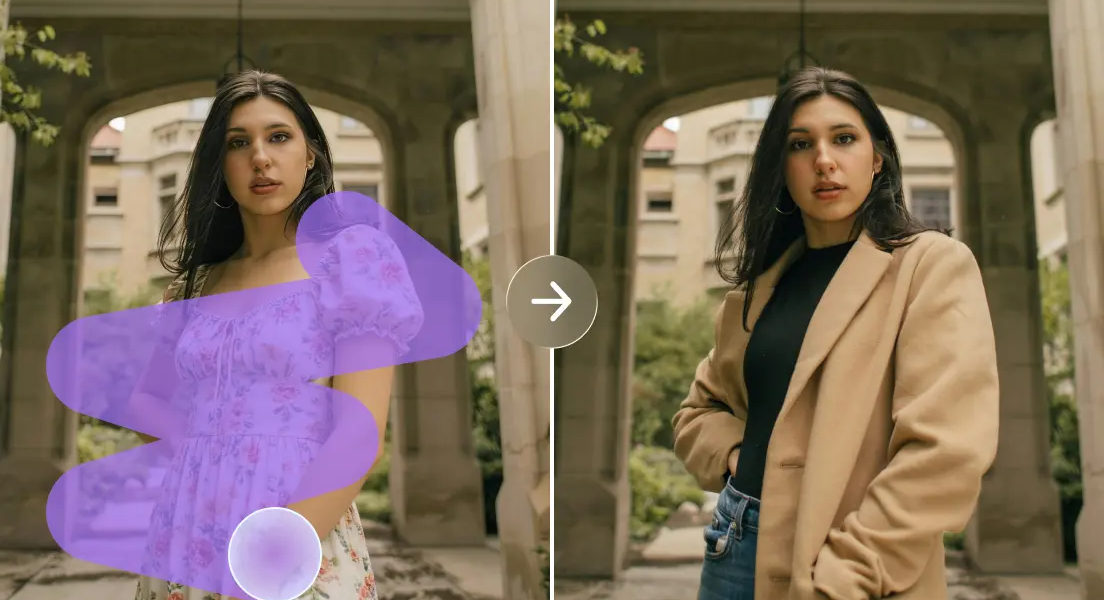
Lighting affects people’s perception of photographs, their facial expressions, material properties, and environmental depth. You can add intimacy, drama, nostalgia, mystery, and more to a basic portrait with a lighting adjustment. With image generation and photo editing, Dreamina AI facilitates the exploration of these creative possibilities. Don’t ask for a brighter image; instead, describe the light source, direction, softness, and atmosphere. This will provide the image with a well-defined visual purpose and aid in retaining important information.
Learn the Main Lighting Elements Before Editing
By mastering the basics of lighting, users can produce more realistic and convincing edits using Dreamina AI. Front lighting is a lighting technique that directly lights a subject, minimizing shadows and bringing out surface details. To create depth by contrast, use side lighting; to separate subjects from the background, use backlighting. Overhead lighting creates shadows downward, which can highlight facial features. The soft light produces a gradual gradation between light and dark, while hard light produces sharper shadows. The colour temperature also helps to create an atmosphere by providing warm, neutral, or cool lighting. Highlights bring out reflective surfaces, midtones maintain recognizable colors, and shadows create depth. Ambient and reflected light further links subjects to their environment. The AI Image Generator will create images that are more cohesive and coherent when prompted by a carefully written prompt.
Choose a Lighting Mood That Supports the Story
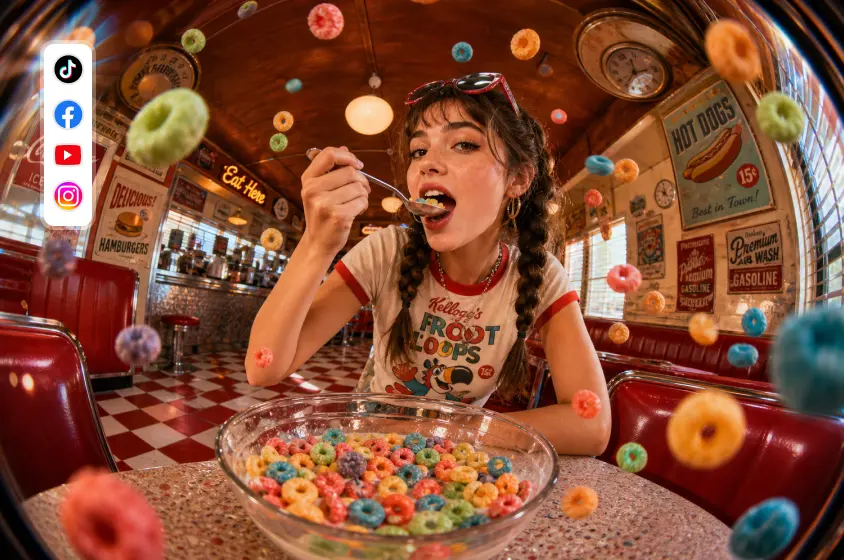
The type of light used should enhance the subject, the setting, and the message. The soft window light is ideal for intimate portraiture, quiet interior lighting, and natural editorial photography, as it produces gentle shadows. The dramatic side lighting highlights facial features, sculptural definitions, and film contrast. Golden hour light creates warm, amber colors, which can evoke an inviting or nostalgic atmosphere in outdoor scenes. Cool blue lighting is ideal for night photography, futuristic settings, and subtle effects. High key lighting produces bright and clean product photos and minimalist artwork. Dreamina AI allows you to explore these various directions by describing specific illumination characteristics. Before choosing the final image, think about how the treatment will impact the skin tones, surface textures, and background separation.
How to Relight Your Photo and Change the Mood With an AI Image Generator in Dreamina?
Step 1: Add Your Photo and Describe the New Lighting
- Sign up or log in to Dreamina first, so you can start relighting your photo.
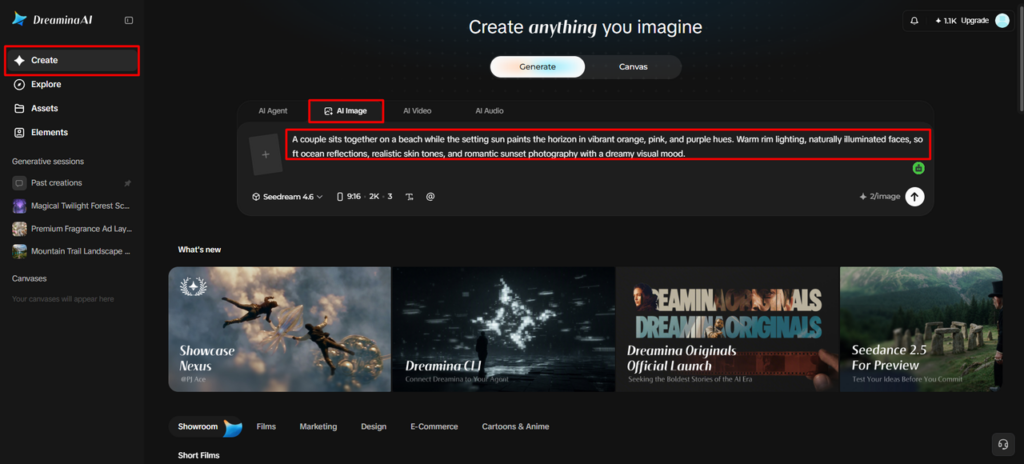
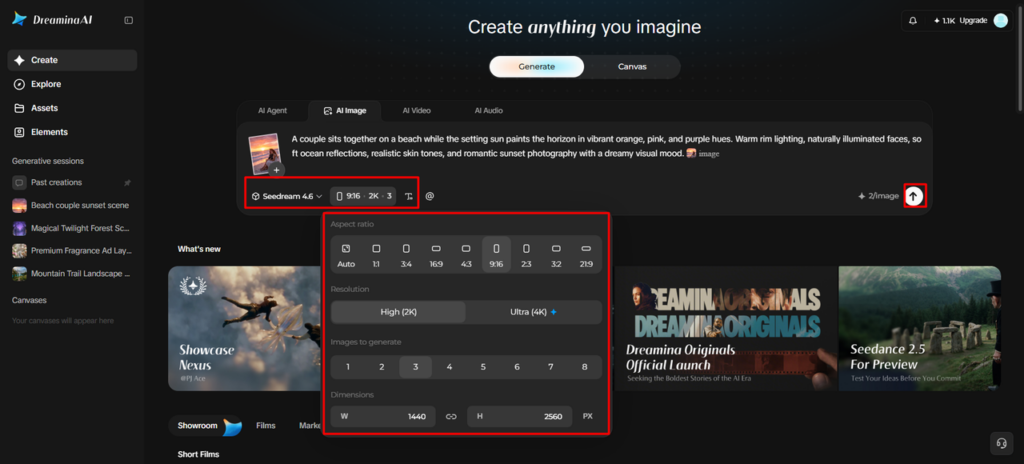
- Go to the “Create” tab from the left menu and select the “AI Image” option.
- Write a detailed text prompt that describes the light and mood you want to see. Add details on image elements, theme, and concept, such as golden hour glow or neon.
Step 2: Choose a Model and Tune the Light Settings
- Pick the image model from the options present at the bottom of the dialogue box.
- Seedream, GPT Image, and Nano Banana are available, so choose whichever fits your lighting style.
- Provide a reference image to Dreamina, so the new lighting looks more precise and natural.
- Then select a custom aspect ratio and resolution from the “Aspect ratio” and “Resolution” tabs.
- Use the “Images to generate” tab for the count and the “Dimensions” tab for custom size.
- To add text to the photo, you can use the “Draw text on image” tab.
- Finally, click the “Generate” tab to begin the creation process and relight the whole scene.
Step 3: Compare the Lighting Drafts and Save the Best
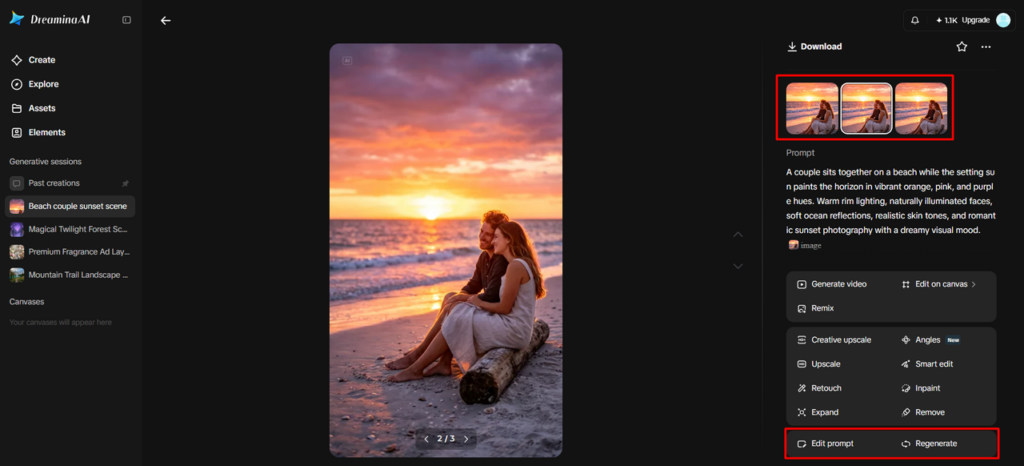
- You will receive the required number of image drafts, each with its own lighting mood. If the glow looks wrong, choose “Edit prompt” or “Regenerate” to refine the generated results.
- You can also upscale the generated image using the “Creative upscale” option for finer details.
- Click “Retouch” to correct, clean up, or enhance details of the selected image, like shadows.
- Use “Remove” to clear anything from your image, or use “Expand” to grow the frame.
- To give your generated image movement, select the “Generate video” tab and proceed with video creation.
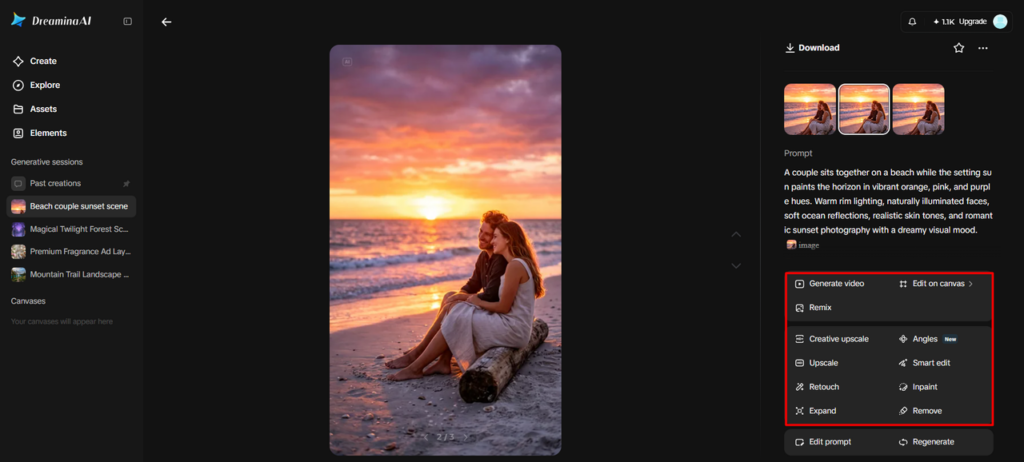
- Dreamina gives you complete freedom to edit your lighting and mood the way you like.
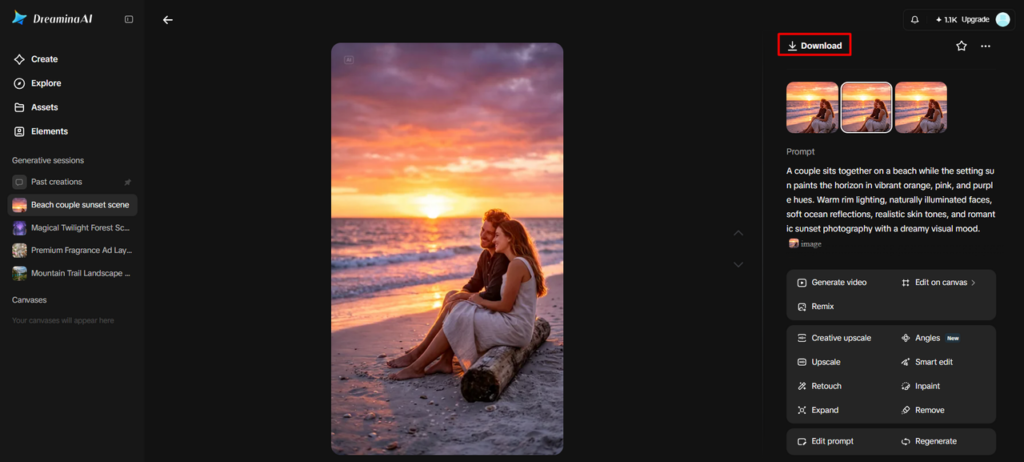
- Finally, click the “Download” tab at the top right of the interface to begin saving. It saves your relit image file on your local device, so you can share it.
Six Lighting Treatments and the Effects They Can Create
- Soft Window Light: Ask for soft light that filters in through a nearby window. The shadows are subtle, maintaining facial features and creating a serene, natural ambiance.
- Golden Hour Glow: Mention warm sunlight, long shadows, and muted golden tones. Be able to maintain skin tones and neutral materials in a realistic manner without excessive orange coloration.
- Cinematic Side Light: Talk about the lighting from the side, shadows, and separation of the subjects. Keep the dark area detail to avoid muddy contrast.
- Cool Night Lighting: Add ambient lighting (blue) and select highlights from nearby light sources. Identify each source to maintain believable spatial relationships.
- Bright Studio Lighting: Ask for even lighting, controlled reflections, and minimal distracting shadows. This is ideal for product photos and refined editorial pieces.
- Backlighting: Use a concentrated light source behind the subject to provide rim lighting or silhouettes. Identify which features are visible to keep important details.
Write Prompts That Communicate Light More Clearly
If you give clear instructions, you’ll get better lighting experiments than if you request pretty pictures. Determine where the light is coming from, such as a window, sunset, overhead fixture, or studio softbox. Describe whether light should be direct, diffused, reflected off other surfaces, or draped by curtains. Explain the direction and the relative lightness or darkness of the object and background. Use physical words and mood words like peaceful, suspenseful, nostalgic. For instance, ask for soft afternoon light in the window from the left, soft shadows on the face, and neutral skin tones. To determine which instructions make a difference, change only one or two variables each time. You can use prompt editing and repeat generation with Dreamina AI to facilitate this iterative process.
Fix Common Problems in AI-Relit Images
Excessive highlights can cause loss of skin, fabric, reflective, and glass texture. When regenerating, make the request intensity lower and detail the surface to preserve. Light sources that conflict will produce shadows that are inconsistent, so make sure to pick one main light source and carefully explain the secondary light source. Too much colour cast can cause white walls, clothes, or product surfaces to appear blue or orange. Ask for neutral zones and moderate color corrections to minimize these effects. Excessive shadows may mask facial details or make products more difficult to read. Explain how deep the shadow should be and what can be seen. Always check against the reference as features may change unintentionally with generated edits.
Keep Lighting Consistent Across a Visual Series
A coordinated collection requires uniform lighting, particularly when looking at product catalogues, social media marketing and editorial photography. Before creating images related to a common light direction, approximate color temperature, etc., make sure to set the shadow depth. Where applicable in the workflow, support with reference photographs to convey the desired lighting character. Compare two pictures side by side, noting differences in brightness, contrast, and atmosphere. Use accurate prompt wording, making necessary changes to individual compositions. While it is not guaranteed that the lighting will be the same from one generation to the next, Dreamina AI can help with this process. Check each item individually to keep the eye flow.
Conclusion
Direction, softness, colour temperature, and contrast are the four key factors to consider when it comes to effective relighting. With Dreamina AI, users can experiment with various lighting treatments and fine-tune their chosen images using the prompt editing and adjustment capabilities. Use a visual intention, then try some controlled changes. Lastly, check shadows, highlights, colours, and recognisable features before export. The lighting can be deliberate, which can alter the mood of the picture, but it should retain its visual and thematic continuity with the main theme.